Legitimate emails land in spam because spam filters predict risk, not intent. A brand-new domain, a sudden volume spike, a missing authentication record, or a history of low engagement can look statistically similar to abusive sending — so the safest placement is often the junk folder.
The good news: most spam placement problems have identifiable root causes, and InboxAlly gives you tools to find and fix them fast.
Start here: use the IA Assistant for guided diagnosis
The fastest way to diagnose why your emails are going to spam is to use the IA Assistant inside the InboxAlly app. It's powered by AI and built on the expertise of InboxAlly's in-house deliverability team.
What the IA Assistant can do:
- Analyze your specific sending situation and identify the most likely cause
- Walk you through the right checks in the right order (so you're not guessing)
- Recommend the exact next steps based on what it finds — authentication fixes, list hygiene actions, content changes, or engagement recovery
- Reference your account data (reputation score, placement results, DMARC reports) to give targeted advice
How to use it: Open the InboxAlly app and look for the IA Assistant. Describe your problem (e.g., "my emails are going to spam at Gmail" or "I switched ESPs and now I'm landing in junk") and it will guide you from there.
The rest of this article explains the underlying framework — useful if you want to understand why things work the way they do, or if you prefer to investigate manually.
Understanding spam placement: the 4 pillars
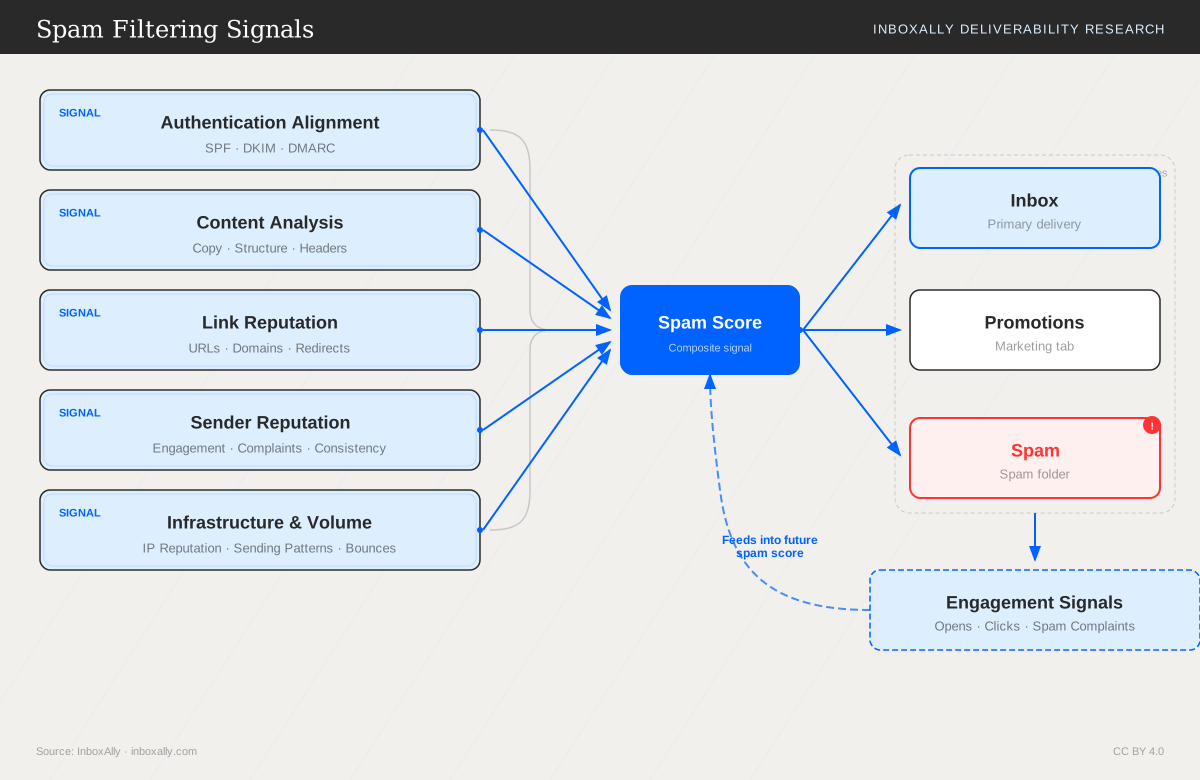
Mailbox providers don't use one "spam test." They combine multiple signals into a placement decision. Think of it as four pillars — if any one is weak enough, it can outweigh the others.
Pillar 1: Sender reputation (domain/IP)
Your track record as a sender, based on how recipients and providers have responded to your mail over time.
Key inputs:
- Complaint rate — "This is spam" clicks are one of the fastest ways to lose inbox placement
- Bounce rate — high hard bounces signal poor list hygiene
- Spam traps — hitting recycled/pristine traps suggests scraping or stale lists
- Sending consistency — sudden volume spikes or long gaps followed by blasts look risky
- Shared vs dedicated IP — on shared IPs, another sender's behavior can affect you; domain reputation matters either way
Pillar 2: Authentication (SPF, DKIM, DMARC)
Proof that you're authorized to send and that the message wasn't altered — plus alignment between the visible "From" domain and authenticated domains.
Common failure points:
- SPF passes but uses a different domain than your "From" address → DMARC fails due to misalignment
- DKIM breaks when an intermediary modifies the message body
- Multiple SPF records or exceeding the 10-lookup limit
For current enforcement expectations, see Gmail and Yahoo changes for bulk senders in 2024.
Pillar 3: Content signals (format, links, HTML)
What the message looks like to filters — structure, wording patterns, link behavior, and technical composition.
Common triggers:
- Image-only emails, heavy HTML, or mismatched "From" name vs domain
- Multiple shortened/tracking links (can resemble phishing)
- Attachments or unusual file types
Test your content with the free Email Spam Checker or Email Content Tester.
Pillar 4: Engagement history (opens, clicks, replies, complaints)
How recipients historically interact with your emails — especially positive actions.
What matters:
- Low opens + low clicks + no replies over weeks teaches providers your mail isn't wanted
- A small segment that consistently opens/replies can help stabilize placement
- Deletes-without-reading and "Report spam" are strong negative signals
These pillars interact. Perfect content can still go to spam if engagement is weak; strong engagement can't fully overcome broken authentication; and a reputation dip can make content filters harsher. That's why fixing only one pillar often isn't enough.
Common patterns: what your symptoms tell you
Use these patterns to quickly narrow the most likely cause — or share them with the IA Assistant for faster, targeted guidance.
| Symptom | Most likely cause | What to check first |
|---|---|---|
| Sudden spam placement after a change (new ESP, new domain, new template) | Volume spike, reputation reset, or authentication break | Compare send volume week-over-week; re-verify SPF/DKIM/DMARC |
| Only Gmail puts you in spam (others OK) | Low engagement signals, high "ignore" behavior | Review engagement trends; segment by engaged vs cold recipients |
| Only Microsoft (Outlook/Hotmail) puts you in junk | IP/domain reputation, SmartScreen filtering, blocklist exposure | Check blocklist status and sending IP reputation |
| Only new subscribers land in spam | Acquisition/list quality issues, mismatched expectations | Audit signup sources, double opt-in, first-email timing |
| All providers spam you | Authentication failure or severe reputation issue | Check SPF/DKIM/DMARC first, then blocklists |
Triage order (avoid wasted effort)
- Authentication first — if SPF/DKIM/DMARC fail, nothing else matters
- Blocklists next — resolve reputation flags before tweaking copy
- Engagement + list hygiene — segment, suppress unengaged, fix expectations
- Content last — optimize once trust signals are stable
Self-diagnosis reference (manual checks)
The IA Assistant walks you through these checks automatically. If you prefer to investigate manually, here's a summary of what to look at in order.
1) Authentication (SPF, DKIM, DMARC)
The most common root cause — especially after switching ESPs or changing DNS.
- SPF: One TXT record per domain, includes all sending systems, under the 10-lookup limit
- DKIM: Signing on the correct domain, selector matches DNS, passes in message headers
-
DMARC: Exists at
_dmarc.yourdomain.com, visible From domain aligns with SPF and/or DKIM
Use Domain Reports (in the InboxAlly app) to review authentication status and alignment.
2) Blocklist and reputation checks
- Check your sending domain and IP(s) with the free Spam Database Lookup
- Focus on widely used, high-signal lists first
- If listed, remediate the underlying cause — see Blocklist Impact and Remediation
3) Engagement and list health
Pull these metrics from your ESP (last 30–60 days): open rate, click rate, reply rate, complaint rate, bounce rate.
Red flags:
- Rising complaints after a list import or volume increase
- High hard bounce rate (list decay, purchased lists)
- Large segments with no recent engagement
Actions:
- Segment by recency (engaged in last 30/60/90 days)
- Pause or re-permission cold segments
- Verify addresses with the free Email List Verification tool
4) Content and technical checks
- Test with the free Email Content Tester or Email Spam Checker
- Watch for: mismatched branded domains, too many links, image-heavy layouts, URL shorteners, inconsistent From/Reply-To
- Use the Placement Tester (in the InboxAlly app) to validate inbox vs spam across providers
Fix content issues before increasing volume — otherwise you reinforce negative signals.
Provider-specific differences
Each mailbox provider weights the four pillars differently. This matters when you see spam placement at one provider but not others.
Gmail: engagement-first
Gmail heavily prioritizes recipient behavior and consistency.
- Rewards: opens, clicks, replies, "Not spam," adding to contacts, consistent sending patterns
- Penalizes: sudden spikes, large sends to cold lists, deletes-without-reading, "Report spam"
If Gmail is the problem, prioritize engagement repair and segmentation. InboxAlly seed emails can help rebuild positive signals after you've confirmed authentication and list quality.
Microsoft (Outlook/Hotmail): reputation-sensitive
Microsoft is strongly influenced by SmartScreen and external reputation signals (including Spamhaus-related indicators).
- Common triggers: new/weak IP reputation, high complaints, URL/domain reputation issues, volume spikes
- Common throttling: sudden increases to Outlook recipients, high bounces, rapid retries after deferrals
If Outlook is the problem, check reputation and blocklist exposure, then stabilize volume.
Yahoo/AOL: strict on authentication and complaints
Yahoo blends reputation with engagement but is less forgiving about authentication alignment and complaint spikes.
- Watch: SPF/DKIM/DMARC alignment, consistent "From" identity, complaint rate (even small increases matter)
If placement differs across providers, it's usually a weighting difference — not purely a content problem.
Fix framework: quick wins vs long-term repairs
Quick wins (hours–days)
- Fix SPF/DKIM/DMARC alignment — use the Email Audit (in the InboxAlly app) to find misconfigurations
- Pause risky sends — stop large campaigns or cold outreach while diagnosing
- Remove problematic links — strip redirects, shorteners, or links to low-reputation domains
- Reduce volume — step down from spikes and ramp back gradually
- Verify lists — remove purchased, scraped, or old addresses; prioritize recent engagers
- Test before sending — use the Placement Tester and free Email Content Tester to validate
Long-term fixes (weeks)
- Rebuild reputation — send on a predictable schedule, keep complaints and bounces low
- Improve segmentation — send fewer emails to more relevant groups
- Sunset unengaged contacts — stop mailing recipients who haven't engaged in 60–180 days
- Add preference management — frequency options, topic preferences, easy unsubscribes
- Reduce complaints at the source — align signup expectations with what you actually send
When InboxAlly seed emails help most
If authentication is correct, content tests clean, and blocklists are clear — but you still land in spam (especially at Gmail/Yahoo) — the issue is often weak engagement signals.
InboxAlly seed emails can rebuild positive engagement patterns that mailbox providers use to reassess sender reputation over time. Track progress with your IA Reputation Score (see Understanding Your IA Reputation Score).
Warm-up: when it helps and when it doesn't
When warm-up is appropriate
- New domain or new dedicated IP (no reputation history)
- Long sending pause (reputation decays)
- Post-blocklist recovery (after delisting and fixing the cause)
- Major volume ramp (hundreds to tens of thousands/day)
When warm-up won't fix it
Fix these before warming:
- Broken authentication (SPF/DKIM/DMARC missing or misaligned)
- Active blocklist listings
- Poor list quality (purchased/old lists, high unknown-user rates)
- High complaint rates
- Spammy content patterns
Safe warm-up plan
- Ramp schedule: Start at 20–50 emails/day, increase 20–40% every 2–3 days (only if metrics stay clean)
- Seed ratio: 30–50% during early ramp → 10–25% mid ramp → 5–10% at stable volume
- Monitor daily: inbox vs spam placement, complaints, bounces
- Tools: Plan your ramp with the free Email Warmup Planner. For a typical timeline, see how long it takes to warm up a domain. Track progress with the IA Reputation Score and Dashboard (in the InboxAlly app).
If you don't have an InboxAlly account yet, start a free trial to access the IA Assistant, Placement Tester, and seed emails.