InboxAlly shows deliverability data your ESP can’t: where your emails actually land (inbox vs. spam) across mailbox providers. When you pair InboxAlly placement metrics with your ESP’s engagement metrics, you can quickly tell whether a performance issue is deliverability (messages aren’t reaching the inbox) or content/targeting (messages reach the inbox but aren’t resonating).
The metric that matters most: inboxing rate
InboxAlly’s inboxing rate is the percentage of your emails that landed in the inbox (vs. spam) across InboxAlly seed inboxes. This is the fastest way to answer: “Are providers accepting and placing my mail correctly?”
Important clarification (Broadcasts): In the Broadcasts view, inboxing rate is calculated from detected seed emails. It measures inbox vs. spam placement for the emails InboxAlly detected—it does not reliably report “missing” or undelivered emails, because InboxAlly can’t always know whether your send included every seed address.
What good looks like
- Consistently high inboxing (80%+) across major providers
- Small day-to-day dips are normal
- The key is consistency and provider balance (no single provider lagging far behind)
What bad looks like
- Sustained inboxing below ~70%
- One provider consistently underperforming (for example, Gmail low while Outlook is fine)
- A sharp drop that persists across multiple sends (often indicates a reputation or policy issue)
Where to find it (Broadcasts)
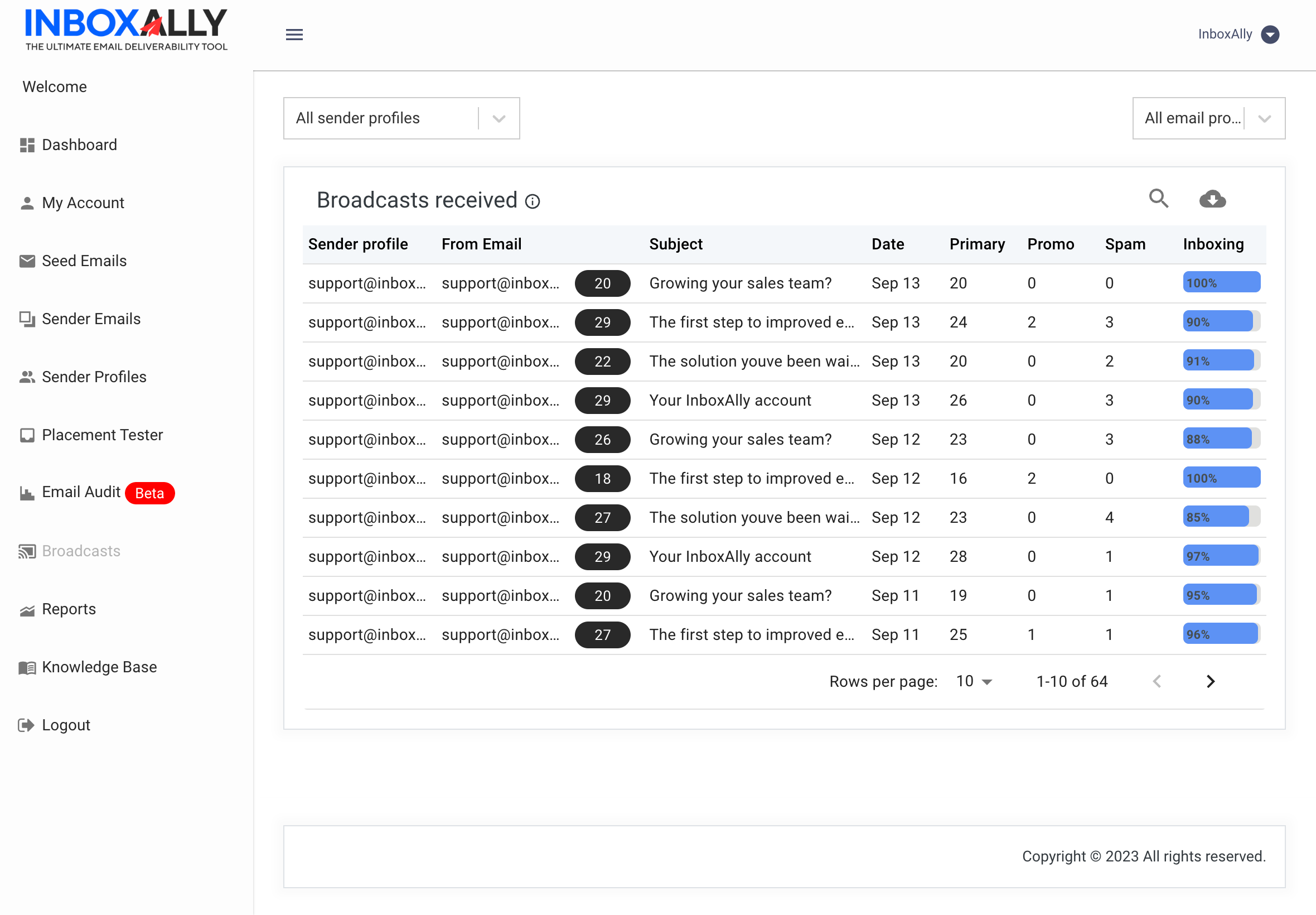
InboxAlly groups similar sends into Broadcasts based on Sender Profile, subject, from-address, and date. Each broadcast shows its inboxing rate so you can compare placement across sends.
To view your detected broadcasts: 1. Open the Broadcasts tab in your InboxAlly dashboard. 2. Review the list of detected broadcasts and their inboxing rate and detected mail counts.
How to read ESP metrics alongside InboxAlly
Use InboxAlly to confirm placement, then use your ESP to interpret engagement. These combinations are the quickest way to diagnose what’s actually wrong.
Low open rate + HIGH inboxing rate
Your emails are reaching the inbox, but people aren’t opening.
What it usually means
- Subject line isn’t compelling (or doesn’t match audience intent)
- Targeting/segmentation is off
- Send time/frequency isn’t aligned with the audience
What to do next
- A/B test subject lines and preview text
- Tighten segmentation (recent engagers vs. cold segments)
- Adjust send timing and cadence before changing deliverability settings
Low open rate + LOW inboxing rate
Your emails are going to spam. Low opens are a symptom, not the cause.
What to do next (deliverability-first)
- Check authentication and domain health in Domain Reports (SPF/DKIM/DMARC status)
- Check for blocklisting with the free Spam Database Lookup
- Follow the Email Reputation Repair guide
- If you recently increased volume, tighten targeting and consider adjusting your seed ratio strategy (more seeds and/or lower daily volume) until placement stabilizes
If you suspect emails aren’t being delivered at all (not just landing in spam): run the Placement Tester. It sends to a controlled set of test inboxes and can detect missing/undelivered emails across providers, giving you a complete picture of delivery and placement.
Good open rate + rising complaints/unsubscribes
People are receiving and opening, but they don’t like what they’re getting (or how often).
What it usually means
- Frequency is too high for that segment
- Content doesn’t match expectations set at signup
- You’re mailing too many low-intent contacts
What to do next
- Reduce frequency for colder segments
- Improve targeting (send fewer, more relevant emails)
- Make preference management and unsubscribe frictionless (this reduces spam complaints)
High bounce rate
This is almost always a list quality problem, and it can quickly damage sender reputation.
What to do next
- Run list hygiene before your next campaign using free Email List Verification
- Remove hard bounces immediately
- Be cautious with old, purchased, or unverified lists (they tend to create bounces and complaints)
Inboxing varies by provider
If one provider’s inboxing rate is consistently lower than others, you likely have a provider-specific reputation issue.
What to do next
- Check Domain Reports for authentication or alignment issues that may affect certain providers more than others
- For Gmail-specific placement problems, use the Gmail Deliverability Deep Dive to troubleshoot common causes (reputation, content signals, and sending patterns)
Using Broadcasts to spot trends
Broadcasts are most useful when you treat them like a trend report—not a single pass/fail score.
Don’t judge deliverability from one send. Look across 5–10 broadcasts.
Compare inboxing rates across:
Different subject lines
Different segments (engaged vs. cold)
Different content types (plain text vs. heavy HTML, promotional vs. informational)
A sudden inboxing drop right after a specific send often points to:
A risky segment (older/unverified contacts)
A content shift (more links, different formatting, more “salesy” language)
A volume change (sending more than usual)
Stable inboxing that gradually declines often indicates reputation erosion:
Tighten targeting
Improve list hygiene
Reduce sends to low-engagement segments until placement recovers
When to dig deeper
Use this quick decision guide to choose the next step:
Inboxing dropped suddenly → run Placement Tester to confirm placement across providers, then use Email Audit to identify the likely cause
Authentication concerns → check Domain Reports for SPF/DKIM/DMARC status
Suspect blocklisting → run the free Spam Database Lookup
Not sure what’s wrong → open the IA Assistant in the InboxAlly app for situation-specific recommendations
Already using InboxAlly? Check your Broadcasts tab now and compare your last 5–10 sends. Not yet? Start a free InboxAlly trial: https://app.inboxally.com/register